Monday, 27 February 2012

Linear Motion Physics Science Students


How To Use Software

EXAMPLE - 1
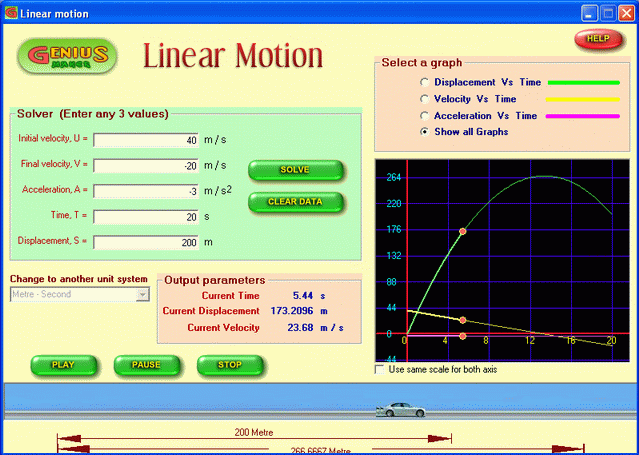
  • A car is moving with a velocity of 40 m/s with a retardation of 3 m/s2 . Calculate the displacement and velocity of the car after 20 seconds.
  • Cilck "Clear data" button to clear off any existing data.
  • Ensure that the unit system selected is " Meter - Second ". If not, select it by using the drop down menu of "Change to another unit system".
  • Enter the following values in the respective boxes.
    • Initial velocity, U = 40 m/s
    • Acceleration, A = - 3 m/s2  ( It is -ve because the given problem says it is retardation.)
    • Time, T = 20 s
  • Click "Solve" button
  • You may see the following.
    • The software solves the given problem and finds out the values of Final velocity and Displacement as - 20 m/s & 200 m respectively and displays the same in the relevant boxes. 
    • The graph window shows all the graphs pertaining to the currently solved linear motion.
    • Try selecting different options from "Select a graph" window. You will see that the graph window changes accordingly.
  • Now click "PLAY" button.
  • You may see that the car starts moving as per the currently solved linear motion and the graph window starts tracing along the graphs showing the current state of the car at any moment. The output parameters window displays the current values of Time, Displacement and velocity as the motion progresses.
  • You may now click "PAUSE" button and see that the play is paused and the graph window also stops tracing and it becomes still at that point of time. The output parameters window also becomes still. The caption of the "Pause" button changes to "RESUME".
  • Click "Resume" button.
  • The play resumes from the previous position and the graph also resumes tracing.   
  • If you want to stop the play at any moment, click "STOP" button. The play stops.
  • You may play it for any number of times.


FREE UNIT CONVERTER - UNIT CONVERSION SOFTWARE

File Size 3.4MB


How To Use Software
 
EXAMPLE - 1
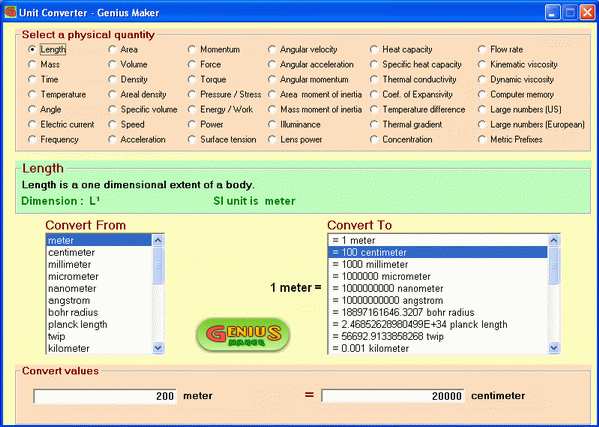
  • Let us convert "5.2 feet" into "centimeters"
  • Cilck "Length" from the "Select a physical quantity" box
  • The Definition box displays the definition, dimension and SI unit of "Length"
  • Click "foot" from the "Convert From" box.
  • You may see that the contents of "Convert To" boxes changes and it currently shows the values in different units which are equal to 1 feet.
  • Click "centimeter" from the "Convert To" box.
  • You may note that the centimeter value is displayed with a prefix number as shown below.
" = 30.48000 centimeter "
  • It implies that 1 feet is equal to 30.48000 centimeter.
  • Now enter the value " 5.2 " in the left side field of "Convert values" box.
  • You may see that the value on the right side field changes as you modify the left field.
  • The right side field displays a value of "158.496043237721".
  • It means that  5.2 feet  =  158.496043237721 centimeter.


Saturday, 25 February 2012

11th Class Model Papers Sience Group Lahore Board 2012

English (Compulsory)                Download

Urdu (Compulsory)                    Download

Islamiyat (Compulsory)             Download

Chemistry                                   Download

Biology                                        Download

Physics                                         Download 

Computer Scienc                        Download 

Mathematics                               Download


10th And 9th Date Sheet Federal Board 2012

                                             Click Here To Download

Thursday, 23 February 2012

10th Class Model Paper Arts Group Lahore Board 2012

.Civics
.Economics
.Education
.English
.General Science
.History Pakistan
.Home Economics
.Islamiat Elective
.Math
.Pak Study
.Urdu
                                  Click Here To All Model Papers Download
                                                           

10th Class Model Paper Science Group Lahore Board 2012

.Biology
.Computer Science
.Chemistry
.Physics 
 .English
.Math
.Pak Study
.Urdu
                                                                  

Wednesday, 22 February 2012

9th Class Model Paper Arts Group Lahore Board 2012

.Arabic
.Civics
.Commercial Geography
.Economics
.Education
.English Literature
.English
.General Science
.Health Education
.Islamiat Elective
.Islamiat
.Math
.Punjabi
.Urdu Elective
.Urdu

                                    Click Here To All Model Paper Download

9th Class Model Paper Science Group Lahore Board 2012

. Biology
.Computer Science
.Chemistry 
.Physics
.Islamiat
.Urdu
.Math
.English


                                             Click here to all model papers download

Complex Number Algebra

  • Open Genius Maker software and click "Complex Algebra" button. It opens the Complex Algebra window.
  • You may see 3 menus. One for selecting the operation, second one for entering input data as well as for display of answer and the third one for displaying the steps to solution. 
  • Let us learn to use the software through examples. 

  • Example - 1

  • Find the sum of the complex numbers (4+3i) and (2+6i)
    • Click the first option "Addition" in the "Select an operation" menu.
    • The title of the top right menu should read as "Addition of Complex Numbers"
    • Click "Clear Data" button.
    • You may see the convention for entering the input data. In this case it reads as below.
    ( a + bi ) + ( c + di )
    • Hence the current problem has to be entered as a = 4, b =3, c = 2 and d= 6
    • After entering these values, click "Evaluate" button. The software displays the answer as ( 6 + 9 i )
    • The steps to solution menu shows the steps as follows. The given problem is to evaluate ( 4 + 3 i ) + ( 2 + 6 i )

      Add Real parts, 4 + 2 = 6

      Add Imaginary parts, 3 + 6 = 9

      Hence Solution is ( 6 + 9 i )

10th Class Date Sheet Lahore Board 2012


9th Class Date Sheet Lahore Board 2012