
EXAMPLE - 1
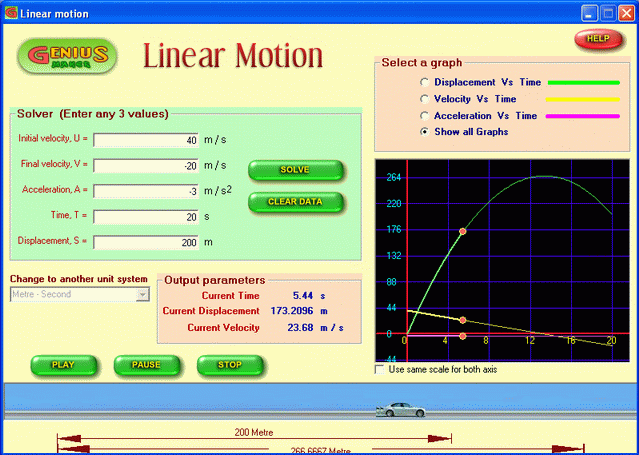
- A car is moving with a velocity of 40 m/s with a retardation of 3 m/s2 . Calculate the displacement and velocity of the car after 20 seconds.
- Cilck "Clear data" button to clear off any existing data.
- Ensure that the unit system selected is " Meter - Second ". If not, select it by using the drop down menu of "Change to another unit system".
- Enter the following values in the respective boxes.
- Initial velocity, U = 40 m/s
- Acceleration, A = - 3 m/s2 ( It is -ve because the given problem says it is retardation.)
- Time, T = 20 s
- Click "Solve" button
- You may see the following.
- The software solves the given problem and finds out the values of Final velocity and Displacement as - 20 m/s & 200 m respectively and displays the same in the relevant boxes.
- The graph window shows all the graphs pertaining to the currently solved linear motion.
- Try selecting different options from "Select a graph" window. You will see that the graph window changes accordingly.
- Now click "PLAY" button.
- You may see that the car starts moving as per the currently solved linear motion and the graph window starts tracing along the graphs showing the current state of the car at any moment. The output parameters window displays the current values of Time, Displacement and velocity as the motion progresses.
- You may now click "PAUSE" button and see that the play is paused and the graph window also stops tracing and it becomes still at that point of time. The output parameters window also becomes still. The caption of the "Pause" button changes to "RESUME".
- Click "Resume" button.
- The play resumes from the previous position and the graph also resumes tracing.
- If you want to stop the play at any moment, click "STOP" button. The play stops.
- You may play it for any number of times.

No comments:
Post a Comment